Page cover

PhonePe – Rapidbott Mini App

This mini app lets your Rapidbott chatbot create PhonePe payment sessions and redirect customers to PhonePe’s secure checkout page.

The flow is:

  1. Chatbot collects amount and basic details from the user.

  2. Rapidbott → calls our PhonePe Deno service → gets an internal orderId.

  3. Chatbot sends the user to your Payment Page URL with ?orderId=....

  4. Your payment page calls /getToken on the Deno service and redirects the user to PhonePe checkout.

  5. After payment, PhonePe redirects back to your success / failure URLs (configured in PhonePe dashboard / Rapidbott flow).


What you need

Before installing the mini app, make sure you have:

  1. A PhonePe business account.

  2. PhonePe Client ID and Client Secret (for the correct environment – Sandbox or Production).

  3. A Payment Page URL on your website (HTML site, Wix, WordPress, etc.).

What is the Payment Page URL and why is it needed?

The Payment Page URL is a normal web page on your website that:

  • Receives the orderId as a query parameter (example: https://yourwebsite.com/pay?orderId=abc123).

  • Calls our Deno service /getToken endpoint with that orderId.

  • Gets back the actual PhonePe tokenUrl.

  • Redirects the user to tokenUrl so the PhonePe checkout opens in their browser.

PhonePe expects the payment to start from a regular website page (not directly from a bot or a copied link), and this middle page also helps us handle security headers, referrer rules, etc. In short: without this Payment Page, the user cannot be correctly redirected to PhonePe checkout.


Step 1 – Install the PhonePe Mini App in Rapidbott

  1. Login to your Rapidbott account.

  2. Go to: Mini App → search for PhonePe.

  3. Click Install Mini App.


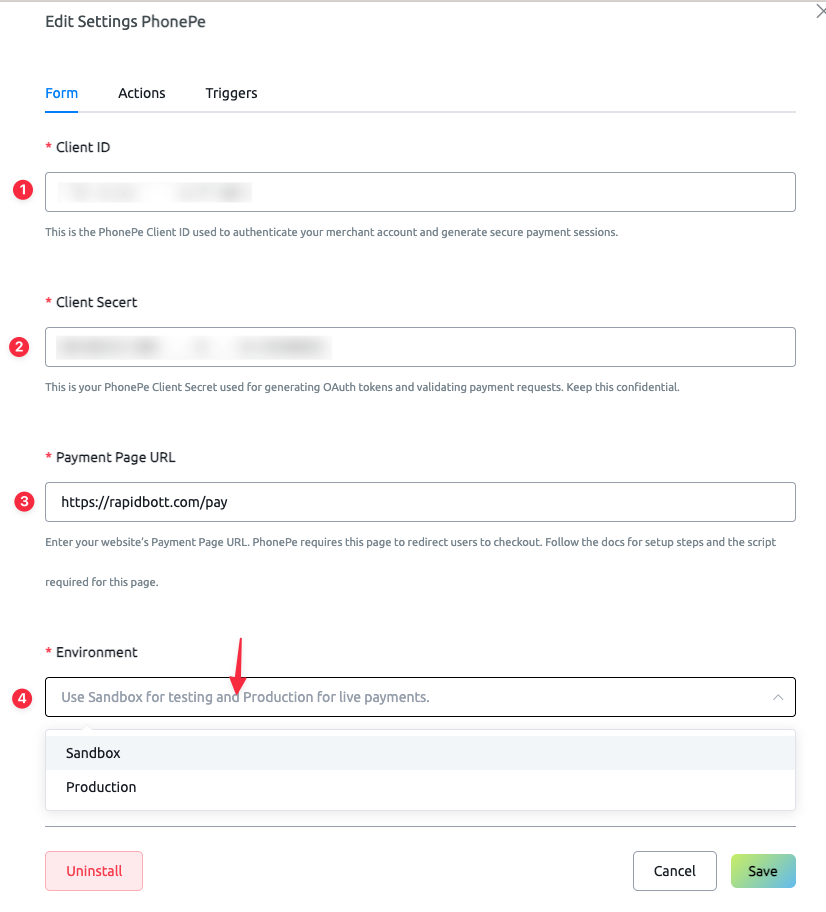
Step 2 – Configure your credentials

Inside the PhonePe mini app settings, fill in:

  1. Environment

    • Sandbox for testing

    • Production for live payments

  2. Client ID Paste your PhonePe merchant Client ID.

  3. Client Secret Paste your PhonePe merchant Client Secret.

  4. Payment Page URL

    • This is the full URL of the page you create in the next step.

    • Example:

      • HTML site: https://mydomain.com/pay.html

      • Wix: https://mydomain.com/phonepe-pay

      • WordPress: https://mydomain.com/phonepe-pay

Click Save once all fields are filled.


Step 3 – Create your Payment Page

You can host the payment page on:

  • Any static HTML site

  • Wix (Velo)

  • WordPress or other CMS

The logic is always the same:

  1. Read orderId from the URL.

  2. Call https://phonepe.deno.dev/getToken?orderId=....

  3. If success and tokenUrl are returned, redirect the user to tokenUrl.

  4. Show friendly error messages if something goes wrong.

3.1 Basic HTML example (any hosting)

Create a file like pay.html on your website and paste:

<!DOCTYPE html>
<html lang="en">
<head>
  <meta charset="UTF-8" />
  <title>Processing Payment…</title>
  <meta name="viewport" content="width=device-width, initial-scale=1">

  <style>
    body {
      font-family: Arial, sans-serif;
      background: #fafafa;
      margin: 0;
      padding: 0;
      display: flex;
      justify-content: center;
      align-items: center;
      height: 100vh;
      text-align: center;
      color: #333;
    }
    .box {
      max-width: 380px;
      padding: 30px;
      background: white;
      border-radius: 12px;
      box-shadow: 0 4px 12px rgba(0,0,0,0.1);
    }
    .loader {
      margin: 20px auto;
      width: 40px;
      height: 40px;
      border: 4px solid #ddd;
      border-top: 4px solid #6a1b9a;
      border-radius: 50%;
      animation: spin 1s linear infinite;
    }
    @keyframes spin {
      100% { transform: rotate(360deg); }
    }
  </style>
</head>
<body>

<div class="box">
  <h2 id="statusText">Connecting to PhonePe…</h2>
  <div class="loader"></div>
</div>

<script>
(async () => {
  const statusEl = document.getElementById("statusText");

  function setStatus(msg) {
    statusEl.innerText = msg;
  }

  // Read ?orderId=XYZ
  const params = new URLSearchParams(window.location.search);
  const orderId = params.get("orderId");

  if (!orderId) {
    setStatus("Missing Order ID. Payment cannot continue.");
    console.error("No orderId found in URL.");
    return;
  }

  setStatus("Fetching payment session…");

  try {
    const apiURL = `https://phonepe.deno.dev/getToken?orderId=${encodeURIComponent(orderId)}`;

    const res = await fetch(apiURL);
    const data = await res.json();

    if (!data.success || !data.tokenUrl) {
      setStatus("Unable to start payment. Please try again.");
      console.error("PhonePe getToken error:", data);
      return;
    }

    // Redirect user to PhonePe checkout
    setStatus("Redirecting to PhonePe…");
    window.location.href = data.tokenUrl;

  } catch (err) {
    console.error(err);
    setStatus("Something went wrong. Please refresh and try again.");
  }
})();
</script>

</body>
</html>

Upload this file (for example at https://yourdomain.com/pay.html) and use that URL as your Payment Page URL in the mini app settings.


3.2 Wix setup (Velo code)

You can do the same flow using Wix + Velo:

  1. In your Wix site, turn on Dev Mode / Velo.

  2. Create a new page (for example: PhonePe Pay).

  3. Set its URL slug (e.g. /phonepe-pay).

  4. Add a Text element on the page and set its ID to textMessage.

  5. Open the Page Code panel and paste this script:

import { fetch } from 'wix-fetch';
import wixLocation from 'wix-location';

$w.onReady(async function () {
  $w('#textMessage').text = 'Loading, please wait...';

  const { orderId } = wixLocation.query;

  if (!orderId) {
    $w('#textMessage').text = 'Invalid payment link (missing orderId).';
    console.error('Missing orderId in query params');
    return;
  }

  try {
    const apiUrl = `https://phonepe.deno.dev/getToken?orderId=${orderId}`;

    const res = await fetch(apiUrl, { method: 'get' });
    const data = await res.json();

    console.log('getToken response:', data);

    if (data.success && data.tokenUrl) {
      $w('#textMessage').text = 'Redirecting to PhonePe...';
      wixLocation.to(data.tokenUrl);
    } else {
      $w('#textMessage').text = 'Unable to start payment. Please try again.';
      console.error('PhonePe getToken error:', data);
    }
  } catch (err) {
    console.error('Error calling /getToken:', err);
    $w('#textMessage').text = 'Something went wrong. Please try again later.';
  }
});
  1. Publish your site.

  2. Use the live page URL (for example https://yourdomain.com/phonepe-pay) as the Payment Page URL in the mini app settings.

3.3 WordPress / other CMS (common setup)

For WordPress or any other CMS, the idea is the same as the Basic HTML example.

Option A – Separate HTML file

  1. Create an HTML file pay.html with the same code from the Basic HTML example above.

  2. Upload it to your hosting (via cPanel / FTP).

  3. Use that file URL as the Payment Page URL.

Option B – WordPress page with Custom HTML block

  1. In WordPress admin, go to Pages → Add New.

  2. Title it, e.g. PhonePe Pay.

  3. Add a Custom HTML block.

  4. Inside the block, add a minimal HTML structure:

<div class="phonepe-box">
  <h2 id="statusText">Connecting to PhonePe…</h2>
  <div class="loader"></div>
</div>

<script>
(async () => {
  const statusEl = document.getElementById("statusText");

  function setStatus(msg) {
    statusEl.innerText = msg;
  }

  const params = new URLSearchParams(window.location.search);
  const orderId = params.get("orderId");

  if (!orderId) {
    setStatus("Missing Order ID. Payment cannot continue.");
    console.error("No orderId found in URL.");
    return;
  }

  setStatus("Fetching payment session…");

  try {
    const apiURL = `https://phonepe.deno.dev/getToken?orderId=${encodeURIComponent(orderId)}`;
    const res = await fetch(apiURL);
    const data = await res.json();

    if (!data.success || !data.tokenUrl) {
      setStatus("Unable to start payment. Please try again.");
      console.error("PhonePe getToken error:", data);
      return;
    }

    setStatus("Redirecting to PhonePe…");
    window.location.href = data.tokenUrl;

  } catch (err) {
    console.error(err);
    setStatus("Something went wrong. Please refresh and try again.");
  }
})();
</script>

<style>
.phonepe-box {
  max-width: 380px;
  margin: 40vh auto 0;
  transform: translateY(-50%);
  padding: 30px;
  background: #fff;
  border-radius: 12px;
  box-shadow: 0 4px 12px rgba(0,0,0,0.1);
  text-align: center;
  font-family: Arial, sans-serif;
}
.loader {
  margin: 20px auto;
  width: 40px;
  height: 40px;
  border: 4px solid #ddd;
  border-top: 4px solid #6a1b9a;
  border-radius: 50%;
  animation: spin 1s linear infinite;
}
@keyframes spin {
  100% { transform: rotate(360deg); }
}
</style>
  1. Publish the page.

  2. Use the page URL (e.g. https://yourdomain.com/phonepe-pay) as your Payment Page URL.

Note: some WordPress setups block <script> in the editor. In that case, you can move the JS into a theme file / Code Snippets plugin and keep only the markup in the page.

Step 4 – Using PhonePe inside your chatbot

Once you have installed the PhonePe Mini App and configured your Client ID, Client Secret, Environment, and Payment Page URL, you can start using the integration inside your chatbot flow.

Follow the steps shown below:


1. Add an Action Node

In your Flow Builder:

  1. Click the + icon and add an Action block.

  2. Inside the Action block, click Integrations (as shown in the screenshot).

This will open the list of available Mini Apps.

2. Select the PhonePe Integration

Scroll through the integrations list and choose:

PhonePe

This opens the actions available inside this Mini App.

From the PhonePe action options, select:

CREATE — Create Payment Link

This action will generate a PhonePe order and return a checkout link.

4. Enter the Payment Amount

Inside the action settings:

  • Fill the amount field.

  • IMPORTANT: PhonePe expects the amount in paise, not rupees.

    • Example:

      • ₹10 → 1000

      • ₹199 → 19900

This rule is mandatory (PhonePe uses integer paise values).

The action returns a Payment Link (the redirect URL from your Payment Page).

You can store this link in any custom field—for example:

checkout_url

Steps:

  1. Under Response Mapping → App Data, click the dropdown.

  2. Choose or Create your custom field (e.g., checkout_url).

  3. Save the action.

This allows you to use the payment link later in your flow.

Now add a Send Message node after the action.

Inside the message:

  1. Type your message: “Here is your payment link”

  2. Add a Button.

  3. Set the button action to Open URL.

  4. Insert the dynamic field: {{checkout_url}}

This will send a clickable PhonePe checkout link to the user.

Example message inside the chatbot:

Here is your payment link [Checkout Button → opens PhonePe]

7. Add PhonePe Triggers (Payment Success / Payment Failed)

PhonePe sends real-time status updates when a customer completes or fails a payment. Using Triggers in Rapidbott, you can automate follow-up actions like sending receipts, granting access, or handling failures.

Follow the steps below:


1. Go to Automation → Triggers

In your left menu:

  1. Click Automation

  2. Select Triggers

This opens your main trigger dashboard.


2. Click “+ Trigger”

On the top-right corner, click the + Trigger button. A list of available trigger types will appear.


3. Choose PhonePe Payment Triggers

Scroll down to the PhonePe section and you will see two triggers:

• PhonePe – Payment Success

Triggered when the user's payment is successfully completed and confirmed by PhonePe.

• PhonePe – Payment Failed

Triggered when the user's payment fails, expires, or is canceled.

Select the trigger you want to configure.


4. Select “PhonePe – Payment Success” Trigger

After creating the trigger:

  • You will see the configuration screen as shown in the screenshot.

  • Turn the trigger ON if it's not already activated.


5. Map Payment Data to Your User Fields

The trigger automatically receives data from PhonePe:

Data Received
Meaning
Example

Payment Status

Usually “SUCCESS”

SUCCESS

Order ID

Internal order reference

RB-PP-20251207-ABC123

PhonePe Payment Details

Full raw payload from PhonePe

JSON object

You can save each of these into your own user fields:

  • Payment Status → PhonePe Status

  • Order ID → order_id

  • PhonePe Payment Details → PhonePe Data

This allows you to use these values later in broadcasts, conditional flows, analytics, or custom reporting.


6. (Optional) Add Conditions

If you want the trigger to run only for a specific group of users, you can add conditions like:

  • User has a specific tag

  • User belongs to a certain flow

  • User triggered a particular action

If not needed, you can leave it empty.


7. Add Notes (Optional)

You can add internal notes such as:

  • “Triggered after successful PhonePe payment”

  • “Maps payment details to user fields for reporting”

This is useful for team reference.


8. Save the Trigger

Click Save to activate it.

Now, every time PhonePe confirms a successful payment:

  • The trigger will run instantly

  • User fields will be updated

  • Your automation flow (actions or messages) will execute


Optional: Configure Payment Failed Trigger

You can repeat the same steps for the Payment Failed trigger to handle:

  • Failed transactions

  • Expired payments

  • User cancellations

  • Payment errors

This helps you automate reminders or resend the payment link.

9. Replace or Edit Sub-Flows Anytime

On the right side of each trigger:

  • Click the ✏️ (edit icon) to change the sub-flow

  • Click the × icon to remove the mapping

  • Toggle the switch to enable or disable a trigger

This gives you complete flexibility to customise the post-payment experience.


✅ Your PhonePe Automation System Is Now Fully Ready

You now have:

✓ Payment Link generation ✓ Custom Payment Page URL redirect ✓ Automatic Payment Success flow ✓ Automatic Payment Failed flow ✓ Optional user fields to store payment data

This completes the end-to-end PhonePe + Rapidbott integration.

Last updated

Was this helpful?